When using Anydesk to remotely access your PC in the office, the window can seem a little small and difficult to work with. It's possible to expand the window to your whole screen, making it much easier to see and work with.
There are two ways to make the screen bigger, one is using the mouse and one using the keyboard.
Mouse:
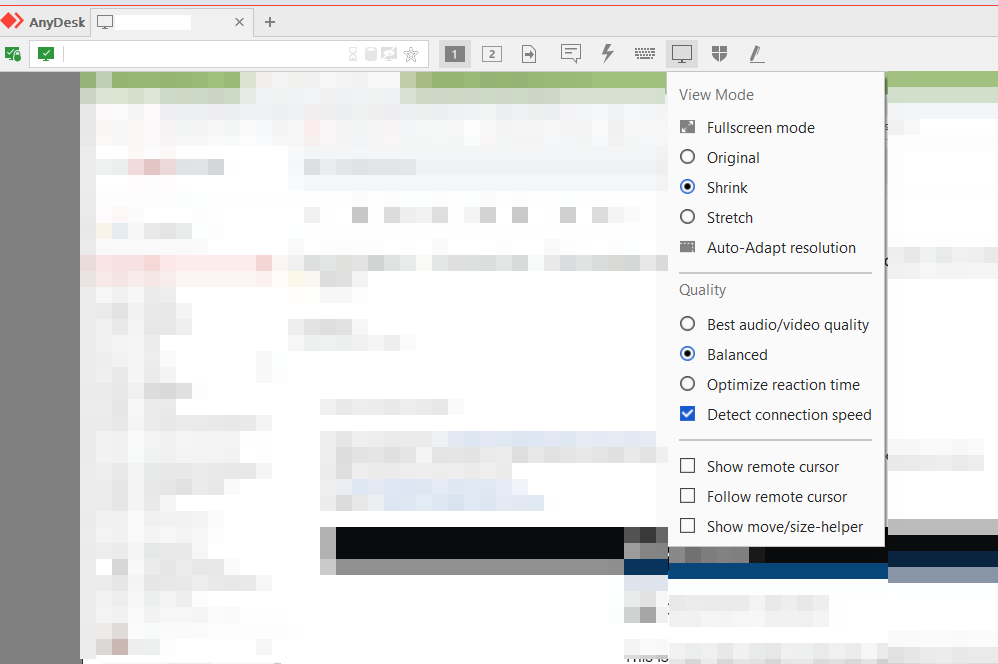
With the mouse, click the Display icon at the top of the screen and choose Fullscreen Mode:
There are two ways to make the screen bigger, one is using the mouse and one using the keyboard.
Mouse:
With the mouse, click the Display icon at the top of the screen and choose Fullscreen Mode:
To switch out of Fullscreen Mode, do the opposite.
Keyboard:
With the keyboard, press Ctrl-Alt-Shift together with one hand and then press F11 or [Return] with the other. That should switch Fullscreen Mode on and off

| Need help? Please get in touch! |
|
You can call us on 01752 422950, option 2 or, if you are on Number Club, just call extension 3000 You can email us at support@hellocomtec.com You can chat with us now at https://kite.wildix.com/nc-a12/3000 |
