Overview
Most people are familiar with Microsoft Outlook and how simple it is to connect to a Microsoft 365 email account. But what if you're not using Microsoft 365 (Also know as Office 365)?
It's still possible to connect Outlook to non-Microsoft email accounts using some settings called IMAP and SMTP. This article with guide you through setting up Outlook 2016 with your email service.
What you will need before you start
When your email account was set up, you will have been received your email account credentials:
Username: Your email username which is also your email address.
Password: Your email account password.
IMAP Server: This is the email server that holds your incoming emails for you.
SMTP Server: This is the server Outlook uses to send emails.
In this example, we are going to use these credentials:
Username: neil@geekcollective.co.uk
Password: fumD8Glty!-dup
IMAP Server: imap.geekcollective.co.uk
SMTP Server: smtp.geekcollective.co.uk
Adding the account
In Outlook, click on the File menu, then Account Settings, then Account Settings again. This will present you with a list of email accounts currently connected to your Outlook. Click on [New....] and then wait while Outlook looks for new accounts. When it presents you with the Outlook dialogue box:
- Enter your email in the email address field
- Click on Advanced options
- Put a tick in "Let me set up my account manually"
- Click the [Connect] button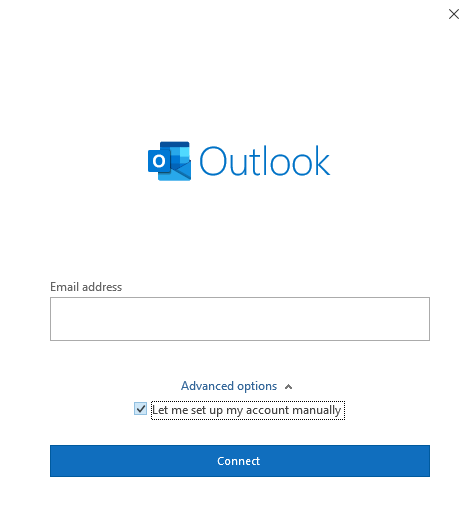
In the Advanced setup box that follows, click on IMAP
In the IMAP Account settings panel, enter your account details:
- Incoming mail:
- Server: enter your IMAP server name
- Port: enter 993
- Encryption method: Click on None and then choose SSL/TLS from the picklist
- Outgoing mail:
- Server: enter your SMTP server name
- Port: enter 465
- Encryption method: Click on None and then choose SSL/TLS from the picklist
Then click [Next]
In the second IMAP account settings panel, enter your password and then click [Connect]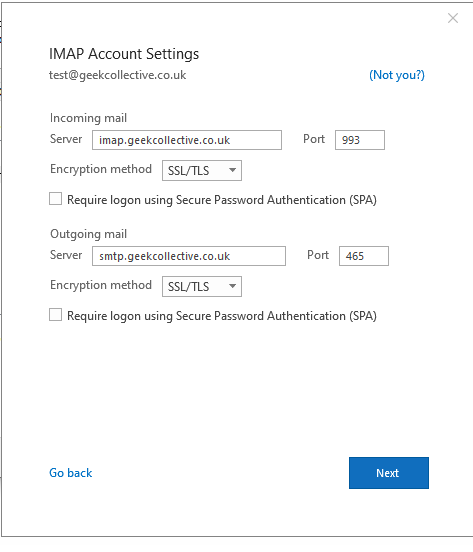
In the third IMAP account settings panel, enter the email password and click [Connect]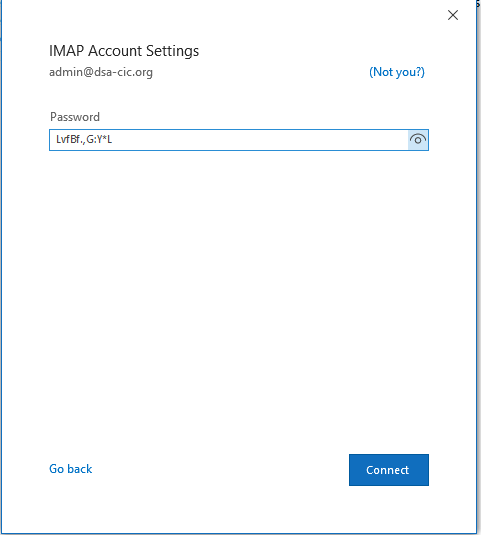
Outlook will then connect to the email server and confirm a successful connection. Click on [Done] to complete the process.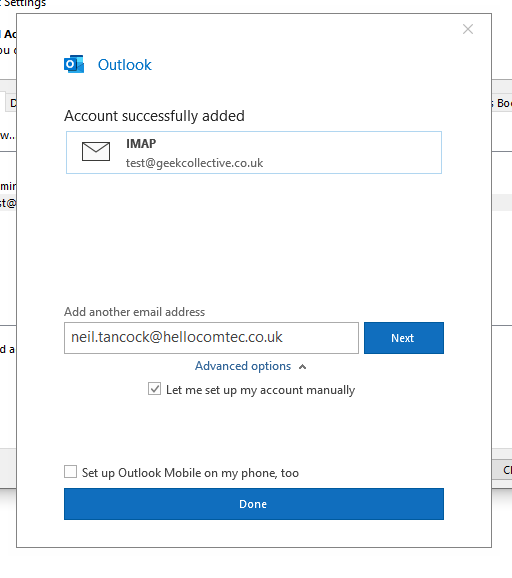
If you have any questions or issues, please contact us on:
Telephone: 01752422950
email: support@hellocomtec.com
chat: https://kite.wildix.com/nc-a12/54
----------------------------------<End of document>----------------------------------