This document will guide you through the steps to download and connect the Wildix app and take and make calls.
- Downloading the app
- Go to the App Store or Google Play store and install the Wildix Collaboration Mobile app
- Connecting the app
- You will need your login details for the phone system. If you do not have these, please contact support to have them send out to you. The login details will consist of:
- Access to Collaboration domain. This is unique to each company and ends in “wildixin.com”
- Your Login
- Your Password
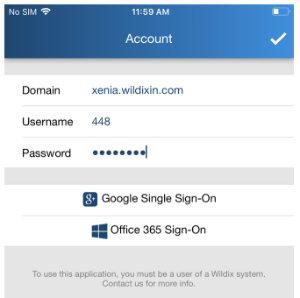
- Once you have your login details, start up the app and enter the above information. If you do not wish to have to remember your username and password, you can log in using your Microsoft 365 or Google Workplace account – simply press the corresponding button underneath and enter your details:
- You are now logged in and can use the app to make and receive calls. At the bottom of the screen are five buttons:
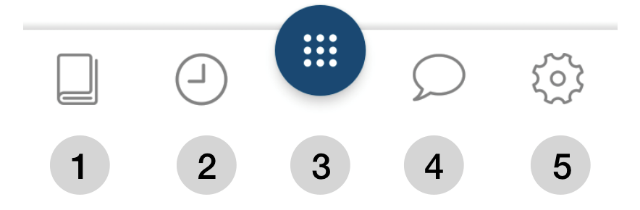
1 Phonebook 2 Your call history 3 Dialpad, Function Keys & Active call 4 Chat 5 Settings
- You will need your login details for the phone system. If you do not have these, please contact support to have them send out to you. The login details will consist of:
- User Status
- Your user status lets others know your availability and also enables you to take the app offline. When in offline mode, the app will no longer ring when someone calls you, although your other devices will still ring.
- Changing your User Status
- Tap the Dialpad
- Tap your icon at the top of the screen. Your icon either shows your initials or your profile pic
- Tap on your current status to open up the list of optional statuses
- Tap the status you require: DND / Away / Offline / Online. Optionally, enter a status message for others to see
- Important:Tap the tick to save your status
- Note: for DND / Away it is possible to set up expiry time via Until option (optional), after which your status reverts to online
- Calls
- Live Search
- You can search for a person or company by typing their name into the search bar at the top of the screen:
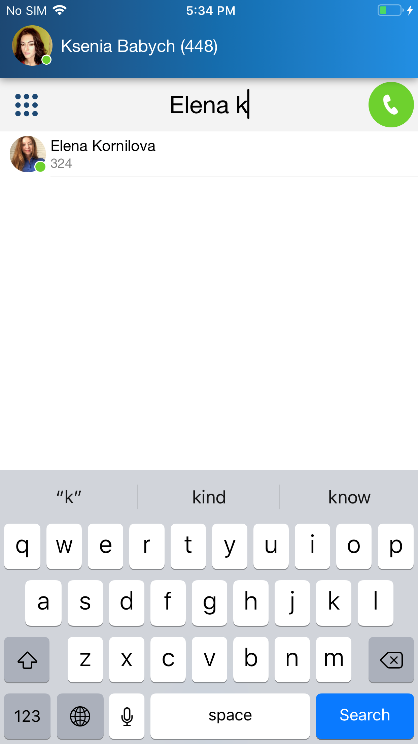
- Simply type their name and then click on the person you want to call
- You can search for a person or company by typing their name into the search bar at the top of the screen:
- Using the Dialpad
- If you know the number you want to call you can enter it on the Dialpad. If you wish to make a normal call, simply click the green dial button. There are other options, accessed buy tapping the call type button on the left. The call type button normally reads “VoIP” unless set to another type:
- VoIP: The call will be made normally via the phone system
- Callback: The phone system dials the number for you and calls you when a connection is made.
- Direct Call: The call is routed through your mobile network.
- Note: This call will present your mobile number as the caller ID, not your office number
- Web: The call will be made via the Collaboration web page using your computers speakers or a USB headset
- If you know the number you want to call you can enter it on the Dialpad. If you wish to make a normal call, simply click the green dial button. There are other options, accessed buy tapping the call type button on the left. The call type button normally reads “VoIP” unless set to another type:
- Using the Function Keys
- The function keys can be used to see other members of staff or special function buttons, set by yourself in the web Collaboration area. To access the function keys press the dialpad and then function keys icon:

- Calls can also be made using the call history list, the chat list and from the voicemail list
- The function keys can be used to see other members of staff or special function buttons, set by yourself in the web Collaboration area. To access the function keys press the dialpad and then function keys icon:
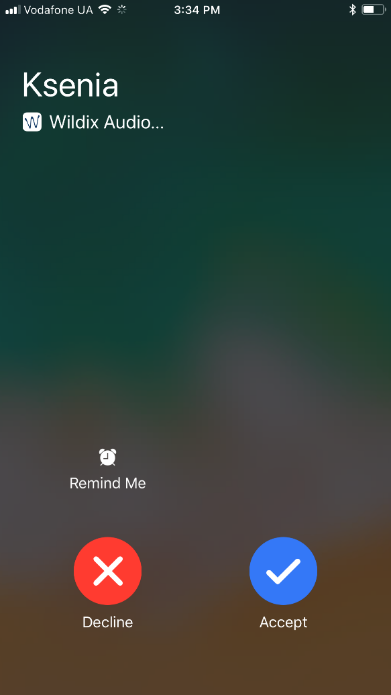
- Answering a call
- Tap the blue tick to answer a call
- Tap the red cross to reject a call
- Call Management
- During a call, you have a number of options to manage the call:
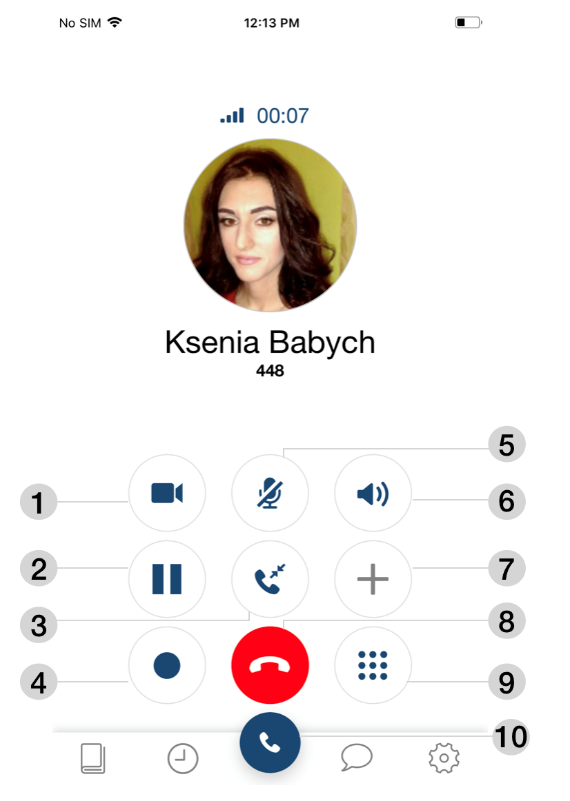
- During a call, you have a number of options to manage the call:
- Live Search
| Button | Function |
| 1 |
Video. Convert the call into a video call |
| 2 |
Hold |
| 3 |
Transfer. Select the needed option for the list: Contact (choose a contact from Contacts)/ Number (dial a number you wish to call from Dialpad)/ Device (select a device where you wish to pass the call)/ Function key (select FK to transfer the call) |
| 4 |
Record a call |
| 5 |
Mute |
| 6 |
Speakerphone. Tap to switch between audio sources: Speaker/ Handset (iPhone)/ Headphones |
| 7 |
Conference / New Call (When there is more than one active call) |
| 8 |
Hang up |
| 9 |
DTMF |
| 10 |
Switch back to Dialpad/ Function keys tabs to make a new call |
-
- Blind Transfer:
- Tap the Transfer button during a call
- Tap Contact to select a number from the phonebook or Number to manually enter the number
- Select a contact and tap the number / enter the number and tap the green Handset button. The call will be transferred away and you will be disconnected.
- Attended Transfer:
- Tap the New call button during a call
- Make a new call (select a contact from Contacts or dial the number manually)
- Wait till the other party answers (the previous call is now on hold)
- Tap Transfer button and select the call on hold to complete the transfer
- Note: If the called party does not want to accept the call, they simply hang up and the original call is reconnected
- Blind Transfer:
- Chat
- Chat enables you to send and receive messages, files and images as well as send post-it notes and callback requests
- Starting a chat session
- Tap Chat
- Use the search field to find a user
- Tap a user and enter your message
- Tap Paper plane icon to send the message
- Note: You can also start a chat session from live search and call history
- Send a File / an Image / a Post-It/ Call me back
- Send a file / an image:
- Start a chat with a user
- Tap +
- Select the source:
- Camera
- Photo & Video Library
- Downloads
- Select files/ images or take a photo using the camera to be sent (you can send up to 10 files/ images)
- Tap Send button
- Confirm by tapping Send
- Send a Post-It
- Start a chat with a user
- Write your message
- Tap +
- Select the option Send as Post-It
- Send a Call me back
- Start a chat with a user
- Tap +
- Select the option Call me back
- Send a voice recording
- Start a chat with a user
- Press and hold Microphone icon to record a message
- After you finish, release to send
- Send a file / an image:
- History
- Tap History to access the log of calls. Incoming, outgoing and missed calls (highlighted in red) are displayed in All tab. To view only missed calls, tap Missed tab.
- Tap and hold a call to be able to delete, archive or copy a phone number to clipboard.
- Tap the double Arrowhead icon to view user contact details and a call log.
- Voicemails
- Tap Voicemail tab to access your Voicemails.
- To download a voicemail message, tap Arrow icon
- To play it back, tap Play button
- To pause a playback, tap Pause button
- Other options: tap on a voicemail message to display the drop-down list: Call a user who left a message, Mark as read or Delete it
- Multi-edit of Voicemails:
- Select one or multiple Voicemails
- Click Mark as read or Delete icon
- Tap Voicemail tab to access your Voicemails.
[END OF DOCUMENT]